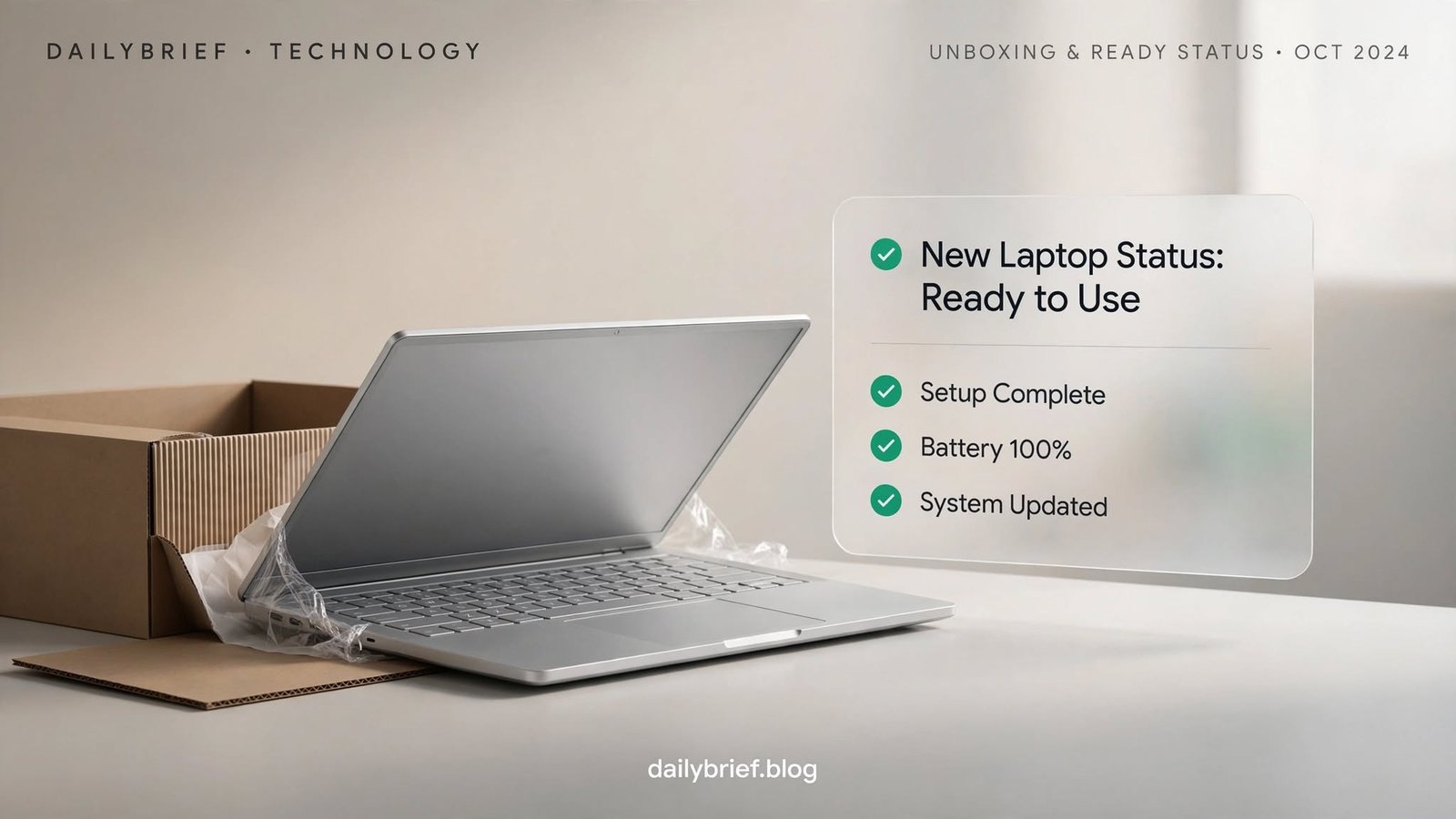
Buying a new computer is exciting, but the experience can become frustrating when you are waiting for an order, tracking a delivery, or trying to determine whether a recently purchased device is ready to use. Understanding your new laptop status can help you know exactly where your purchase stands and what action, if any, you need to take.
Whether you ordered a laptop online, purchased one from a local retailer, or are checking a device after delivery, status information can reveal important details. It may show that your order is processing, preparing for shipment, in transit, delivered, or awaiting an action from you.
This guide explains what different laptop statuses mean, how to check them, what to do when a status does not change, and how to verify that a newly purchased laptop is genuinely ready for everyday use.
What Does New Laptop Status Mean?
The phrase new laptop status can refer to the current condition or progress of a newly purchased laptop. In an online shopping context, it usually describes the progress of an order from purchase confirmation to delivery.
For a physical device, however, the term can also describe whether the laptop is new, activated, configured, updated, or ready to use.
Common meanings include:
- Order received
- Payment confirmed
- Processing
- Preparing for shipment
- Shipped
- In transit
- Out for delivery
- Delivered
- Ready for pickup
- Setup required
- Warranty activated
The exact wording depends on the retailer, manufacturer, shipping company, or marketplace where you purchased the computer.
New Laptop Status During the Ordering Process
If you purchased a laptop online, the order normally passes through several stages. Knowing what each stage means can prevent unnecessary concern when the tracking page appears unchanged for a day or two.
Order Confirmed
An order-confirmed message generally means the retailer has successfully received your purchase request. It does not always mean the laptop has already left the warehouse.
At this stage, the seller may still be verifying payment, inventory, delivery information, and other order details.
Processing
A processing status usually indicates that the seller is preparing the order internally. The laptop may be waiting for inventory allocation, packaging, payment verification, or another fulfillment step.
Processing does not normally mean there is a problem.
Preparing for Shipment
This status generally means the warehouse is getting the laptop ready to leave. Staff may be picking the device, checking the order, packaging it, and creating a shipping label.
If tracking information has been generated but the package has not moved, this is often why.
Shipped
A shipped status means the order has been handed over to, or prepared for collection by, the shipping carrier. You should normally receive a tracking number at this point.
Keep in mind that a shipping label can sometimes be created before the carrier physically scans the package.
In Transit
“In transit” means the laptop is moving through the carrier’s network. It may pass through several sorting facilities before reaching your local delivery center.
The tracking page may remain unchanged while the package is traveling between facilities.
Out for Delivery
This generally means the carrier has loaded the package onto a vehicle for final delivery. It is usually one of the last stages before the laptop reaches you.
Delivery times can still vary because of traffic, weather, route changes, or the carrier’s daily workload.
Delivered
A delivered status indicates that the carrier has recorded the package as delivered. If you cannot locate it, check the delivery instructions, reception area, household members, neighbors, and any delivery photo supplied by the carrier.
If the package remains missing, contact the retailer and shipping company promptly.
How to Check Your New Laptop Status
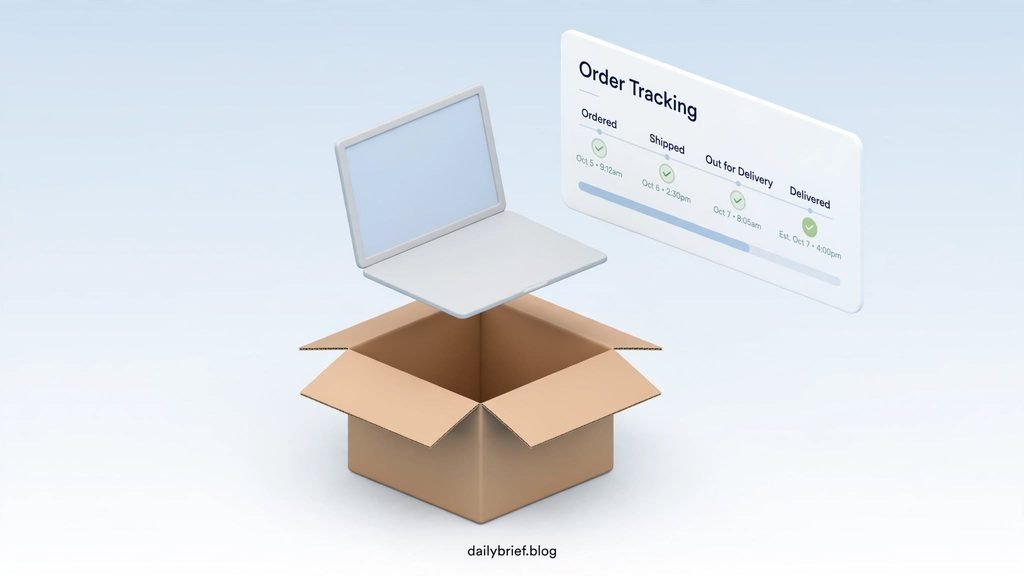
Checking your order is usually straightforward. Start with the confirmation email or message you received after purchasing the laptop.
Look for:
- Order number
- Tracking number
- Retailer’s order-status page
- Shipping carrier information
- Estimated delivery date
- Customer-support contact details
If you purchased directly from a laptop manufacturer, sign in to your account and open the order history. If you purchased through an online marketplace, use its dedicated order-tracking section.
Avoid relying solely on third-party tracking websites when official information is available. The retailer or carrier usually has the most reliable information about the order.
Why Your New Laptop Status May Not Change
One of the most common concerns after purchasing a laptop is seeing the same status for several hours or even days.
There are several possible explanations.
Warehouse Delays
The retailer may be experiencing high order volume. Promotional events, holidays, new product launches, and seasonal sales can increase processing times.
Shipping Label Created
Sometimes a seller creates a shipping label before the package is collected. The tracking page may show little or no movement until the carrier performs its first physical scan.
Weekend or Holiday Delays
Warehouses and shipping networks may operate on different schedules during weekends and public holidays. A status that remains unchanged during this period does not automatically indicate a problem.
Inventory Issues
If the laptop was advertised as available but inventory has changed, the retailer may need additional time to locate or replenish stock.
Address Verification
Incorrect or incomplete delivery information can delay fulfillment. Check your order confirmation carefully to make sure the shipping address and contact information are accurate.
New Laptop Status After Delivery
Once the laptop arrives, checking its physical and software condition is just as important as tracking the order.
Do not immediately assume that a sealed-looking box guarantees everything is perfect. Spend a few minutes inspecting the device before removing protective materials or discarding packaging.
Check the Packaging
Look for:
- Damaged corners
- Broken seals
- Heavy dents
- Signs of moisture
- Opened or resealed packaging
Minor shipping marks may not indicate a serious issue, but significant damage should be documented before you begin setup.
Verify the Laptop Model
Compare the model number and specifications with your original order.
Check:
- Processor
- RAM
- Storage capacity
- Display size
- Graphics hardware
- Operating system
- Color or finish
If the specifications do not match your purchase, contact the seller before making major changes to the system.
Inspect the Physical Condition
Look carefully at the screen, keyboard, trackpad, ports, hinges, chassis, and charger.
A new computer should not normally have obvious scratches, dents, excessive fingerprints, or other signs suggesting previous use.
How to Confirm a Laptop Is Actually New
The new laptop status of a physical device can sometimes be unclear, especially when buying from marketplaces or third-party sellers.
Windows itself may not always provide a simple “this laptop has never been used” indicator. Instead, evaluate several pieces of evidence together.
Check the device’s serial number and warranty information through the manufacturer’s official support page where available. Compare the warranty start date with your purchase date.
Also inspect the initial setup experience. A computer that starts directly at a desktop with another person’s account already configured deserves additional investigation.
However, warranty dates can sometimes begin before the product reaches the customer because of retailer or distributor registration. A mismatch does not automatically prove that the laptop is used.
New Laptop Status and Warranty Verification
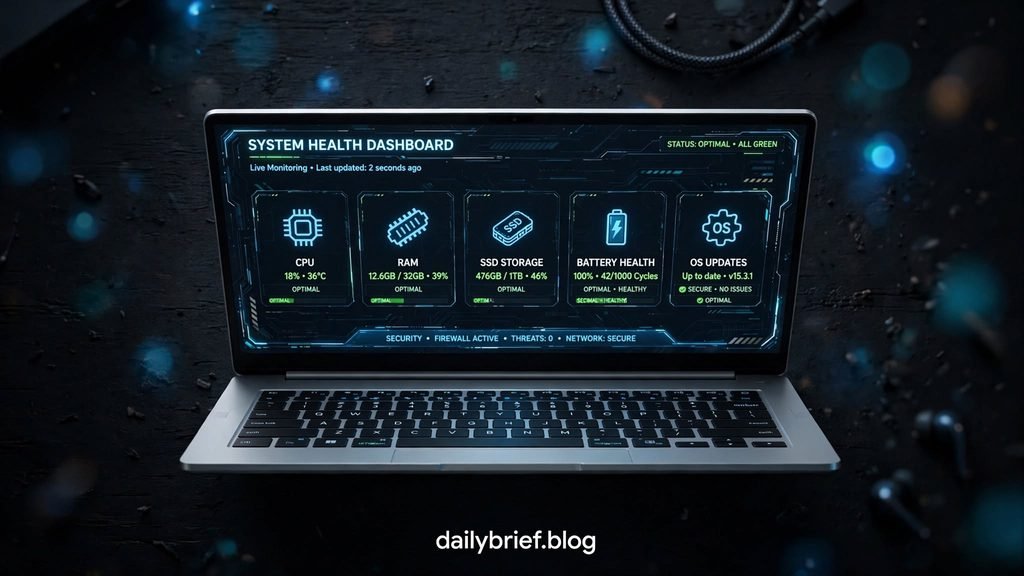
Warranty verification is one of the most useful steps after purchasing a laptop.
Find the manufacturer’s official support or warranty-checking service and enter the device serial number. The information may show:
- Warranty coverage
- Warranty start date
- Warranty expiration date
- Product model
- Support eligibility
If the warranty information looks significantly different from what you expected, save screenshots and contact the seller or manufacturer.
Never publish your full serial number publicly because it is better treated as device-specific information.
What to Do If Your New Laptop Status Is Stuck
If an order has remained on the same status longer than the seller’s estimated processing period, take action rather than repeatedly refreshing the tracking page.
First, check your email for messages about payment, inventory, address verification, or delivery changes.
Next, review the retailer’s estimated fulfillment time. If the expected date has passed, contact customer support with your order number and ask for a specific update.
A useful support request should include:
- Order number
- Purchase date
- Current status
- Expected delivery date
- Tracking number, if available
Ask whether the laptop has physically shipped or whether only a shipping label has been created. This distinction can provide a much clearer picture of the situation.
New Laptop Status: Quick Comparison
| Status | What It Usually Means | What You Should Do |
|---|---|---|
| Confirmed | Order received | Wait for processing |
| Processing | Seller is preparing the order | Monitor updates |
| Preparing Shipment | Package is being packed | Watch for tracking |
| Shipped | Carrier process has started | Track the package |
| In Transit | Package is moving | Wait for delivery |
| Out for Delivery | Final delivery stage | Be available |
| Delivered | Carrier marked it delivered | Inspect the laptop |
| Delayed | Expected schedule changed | Contact seller if necessary |
| Cancelled | Order will not proceed | Check refund information |
Common Mistakes to Avoid
One mistake is assuming that every unchanged tracking status means the package is lost. Carrier systems do not necessarily update in real time, and scans can be delayed.
Another mistake is throwing away the packaging immediately. Keep the box, accessories, invoice, and other materials until you have tested the laptop and confirmed that everything is correct.
You should also avoid installing large amounts of software before checking the device. First verify the model, specifications, display, keyboard, ports, storage, battery, charger, and warranty.
Finally, do not ignore unexpected signs of previous use. If the device arrives with an unfamiliar account, significant wear, missing accessories, or inconsistent specifications, document the issue and contact the seller.
What to Test on a New Laptop
After completing the initial setup, perform a basic inspection.
Hardware
Test the:
- Display for dead or unusual pixels
- Keyboard and backlight
- Trackpad
- USB and other ports
- Speakers
- Microphone
- Webcam
- Wi-Fi and Bluetooth
- Charger and charging port
Battery
Check whether the battery charges normally and whether the system reports unexpected battery-health problems.
A new laptop can show some battery usage because devices may be tested during manufacturing or retail handling, so a small amount of usage is not automatically suspicious.
Performance
Open several ordinary applications and confirm that the laptop behaves normally. Listen for unusual noises, excessive heat, crashes, or unexpected shutdowns.
You do not need to run extreme stress tests immediately. Basic everyday testing can identify many problems without putting unnecessary strain on the device.
When Should You Contact the Seller?
Contact the seller when the delivery estimate has passed without a meaningful update, your order was cancelled unexpectedly, the wrong model arrived, the package is damaged, or the laptop appears used despite being sold as new.
You should also contact support if warranty information is substantially inconsistent with your purchase and the manufacturer cannot explain the discrepancy.
Keep your invoice, order confirmation, photographs, tracking details, and support conversations. These records can make a return or replacement request much easier.
Final Thoughts on New Laptop Status
Understanding new laptop status is useful both before and after delivery. Order statuses tell you where a purchase is in the fulfillment process, while post-delivery checks help confirm that the computer matches your order and is ready for use.
Do not panic when tracking information remains unchanged for a short period. Instead, compare the current status with the seller’s estimated timeline and investigate when a genuine delay occurs.
After receiving the laptop, verify its specifications, physical condition, warranty, accessories, and basic functionality before disposing of the packaging. Taking these simple steps can help you catch problems early and ensure that your new laptop status reflects what you actually purchased: a correctly supplied, functional computer ready for everyday use.